

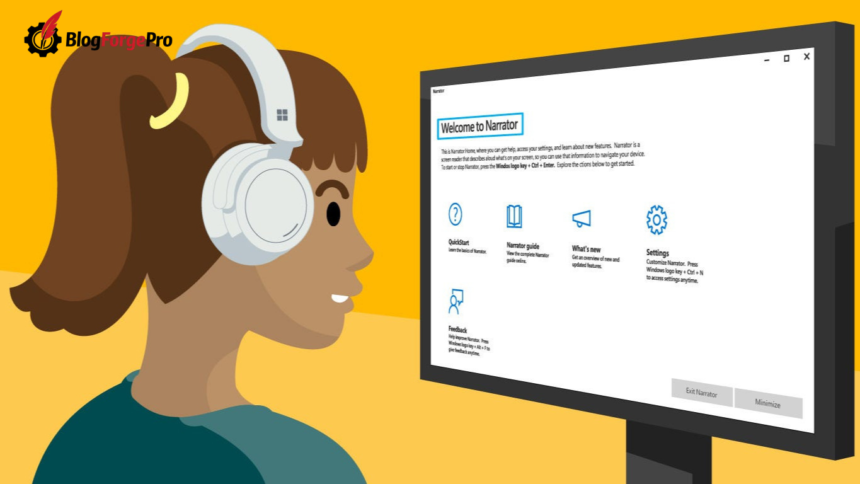
In a world where digital experiences dominate everyday life, accessibility is no longer optional it’s essential. Whether you’re helping someone with visual impairments or simply looking for a more efficient way to navigate your device, knowing how to turn on screen reader support quickly can make a significant difference.
- What Is Screen Reader Support and Why It Matters
- Best Tips to Turn on Screen Reader Support Quickly
- Use Built-in Accessibility Settings
- Enable Keyboard Shortcuts for Faster Access
- Customize Screen Reader Preferences
- Keep Your Device Updated
- Use Accessibility Extensions or Tools
- How to Turn on Screen Reader Support (Step-by-Step Guide)
- Common Use Cases for Screen Reader Support
- Best Practices for Using Screen Reader Support
- Common Mistakes to Avoid
- Frequently Asked Questions (FAQs)
- What is the fastest way to turn on screen reader support?
- Is screen reader support available on all devices?
- Can I customize how a screen reader sounds?
- Do screen readers work offline?
- Is screen reader support only for visually impaired users?
- Are screen readers free to use?
- Conclusion
Screen readers transform text into speech, allowing users to interact with devices without relying on sight. But for many, the setup process can feel confusing or time-consuming.
This guide breaks everything down into simple, actionable steps. You’ll learn what screen reader support is, why it matters, and the best tips to enable it quickly across devices without frustration.
What Is Screen Reader Support and Why It Matters
Screen reader support refers to accessibility features that convert on-screen text into spoken words or braille output. These tools help users navigate apps, websites, and operating systems through audio feedback.
According to World Health Organization, millions of people worldwide live with some form of visual impairment. Screen readers play a vital role in making digital content accessible to them.
Who Uses Screen Readers?
Screen readers aren’t limited to one group. They are widely used by:
- People with visual impairments or blindness
- Users with reading difficulties or dyslexia
- Individuals who prefer hands-free navigation
- Professionals multitasking while consuming content
Benefits of Enabling Screen Reader Support
Turning on screen reader support offers several advantages:
- Improved accessibility for all users
- Easier navigation through menus and apps
- Compliance with accessibility standards (like WCAG)
- A more inclusive digital experience
Best Tips to Turn on Screen Reader Support Quickly
If you want to turn on screen reader support without wasting time, these proven tips will help you get started faster and more efficiently.
Use Built-in Accessibility Settings
Most devices come with built-in screen readers:
- Windows: Narrator
- macOS & iOS: VoiceOver
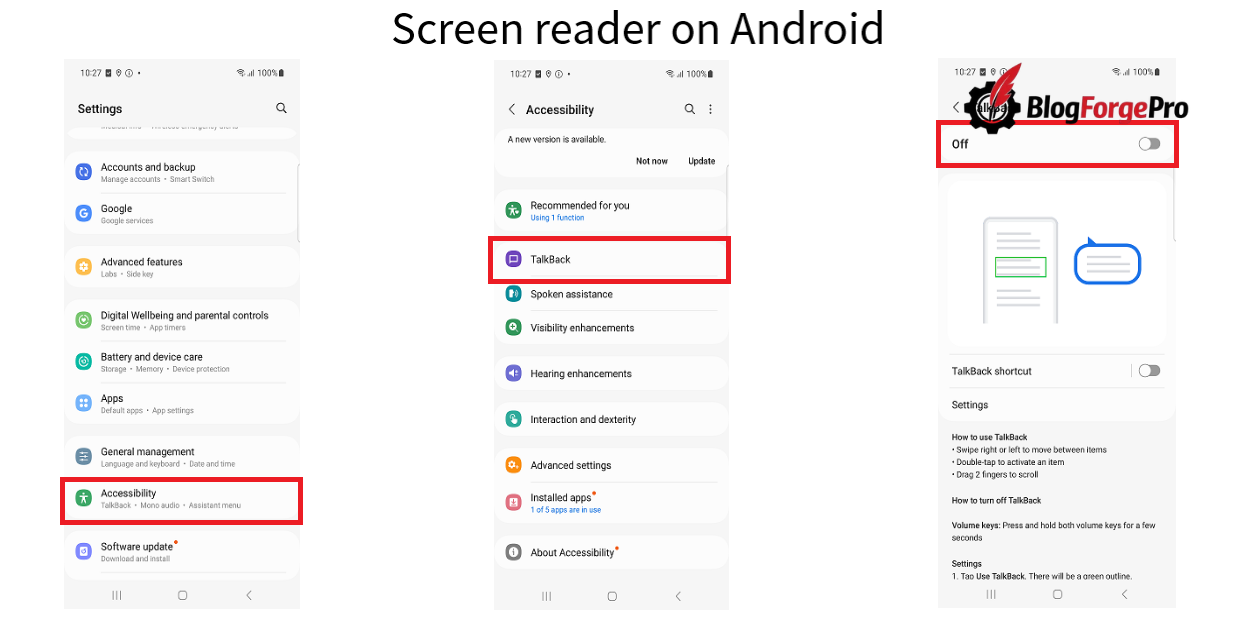
- Android: TalkBack
You can usually find them under Settings → Accessibility. This is the fastest and most reliable way to enable screen reader support.
Enable Keyboard Shortcuts for Faster Access
Instead of digging through menus, use shortcuts:
- Windows:
Ctrl + Windows + Enter - macOS:
Command + F5 - iPhone: Triple-click the side button (if enabled)
These shortcuts allow you to turn on screen reader support instantly.
Customize Screen Reader Preferences
Once activated, adjust settings to improve usability:
- Change speech speed
- Select a preferred voice or language
- Modify navigation verbosity
Customization ensures a smoother and more comfortable experience.
Keep Your Device Updated
Software updates often include accessibility improvements. Using outdated systems can lead to bugs or missing features.
Always install the latest updates to ensure your screen reader works efficiently.
Use Accessibility Extensions or Tools
For web browsing, consider:
- Browser-based screen reader extensions
- Accessibility tools for enhanced navigation
These tools can complement built-in features and improve your overall experience.
How to Turn on Screen Reader Support (Step-by-Step Guide)
If you’re new to accessibility features, here’s a simple guide to help you enable screen reader support on different devices.
On Windows Devices
- Open Settings
- Go to Accessibility
- Select Narrator
- Toggle it On
Quick Tip: Press Ctrl + Windows + Enter to activate instantly.
On macOS Devices
- Open System Settings
- Navigate to Accessibility
- Click VoiceOver
- Turn it On
Shortcut: Press Command + F5 for quick access.
On Android Devices
- Open Settings
- Tap Accessibility
- Select TalkBack
- Turn it On
You can also enable it using volume key shortcuts on many devices.
On iOS Devices
- Go to Settings
- Tap Accessibility
- Select VoiceOver
- Toggle it On
Shortcut: Triple-click the side button (if configured).
Common Use Cases for Screen Reader Support
Understanding when and why to use screen readers helps you get the most value from them.
Browsing Websites
Screen readers allow users to:
- Navigate headings and links
- Read articles and menus
- Interact with forms
This is especially helpful for accessing online content independently.
Using Apps and Software
From messaging apps to productivity tools, screen readers enable:
- Reading notifications
- Writing messages through voice feedback
- Managing tasks efficiently
Learning and Education
Students benefit greatly from screen reader support:
- Listening to textbooks and articles
- Navigating e-learning platforms
- Improving accessibility in digital classrooms
Best Practices for Using Screen Reader Support
To get the most out of your experience, follow these best practices.
Start with Default Settings
Beginners should avoid over-customizing at first. Default settings are designed to be user-friendly and easy to learn.
Learn Basic Navigation Commands
Understanding key gestures and shortcuts can significantly improve efficiency. For example:
- Swiping gestures on mobile devices
- Keyboard navigation on desktops
Practice Regularly
Like any tool, screen readers become easier with practice. Spend time exploring features to build confidence and speed.
Common Mistakes to Avoid
Even though it’s easy to turn on screen reader support, some common mistakes can limit its effectiveness.
- Skipping customization: Default settings may not suit everyone
- Ignoring shortcuts: This slows down navigation
- Using outdated software: Leads to bugs and poor performance
- Overcomplicating setup: Keep it simple, especially at the start
Avoiding these mistakes will save time and improve your experience.
Frequently Asked Questions (FAQs)
What is the fastest way to turn on screen reader support?
Using keyboard or button shortcuts is the quickest method, such as Ctrl + Windows + Enter on Windows or triple-clicking the side button on iPhone.
Is screen reader support available on all devices?
Most modern devices, including smartphones, tablets, and computers, come with built-in screen reader features.
Can I customize how a screen reader sounds?
Yes, you can adjust voice type, speed, pitch, and language in the accessibility settings.
Do screen readers work offline?
Yes, most built-in screen readers function without an internet connection, though some advanced features may require it.
Is screen reader support only for visually impaired users?
No, it’s also useful for multitasking, learning, and improving overall accessibility for all users.
Are screen readers free to use?
Most built-in screen readers (like Narrator, VoiceOver, and TalkBack) are completely free.
Conclusion
Learning how to turn on screen reader support quickly is a small step that can make a huge difference in accessibility and usability. Whether you’re using it for yourself or helping someone else, these tools open up a more inclusive digital world.
By using built-in features, mastering shortcuts, and following best practices, you can enable and use screen readers with ease. The key is to start simple, explore gradually, and make adjustments based on your needs.
Accessibility isn’t just a feature it’s a necessity. And with the right approach, turning on screen reader support becomes quick, easy, and incredibly valuable.